How to configure payroll squads
Payroll squads are a way of managing groups of payrolls and users.
A tenant admin can create payroll squads. A Supervisor in a payroll squad can manage that squad, including adding employers to it and assigning users to it.
The Supervisor and Operator roles are in beta, so only some customers can use them at the moment. Permissions for these roles may change. To take part in the beta, contact an account manager.
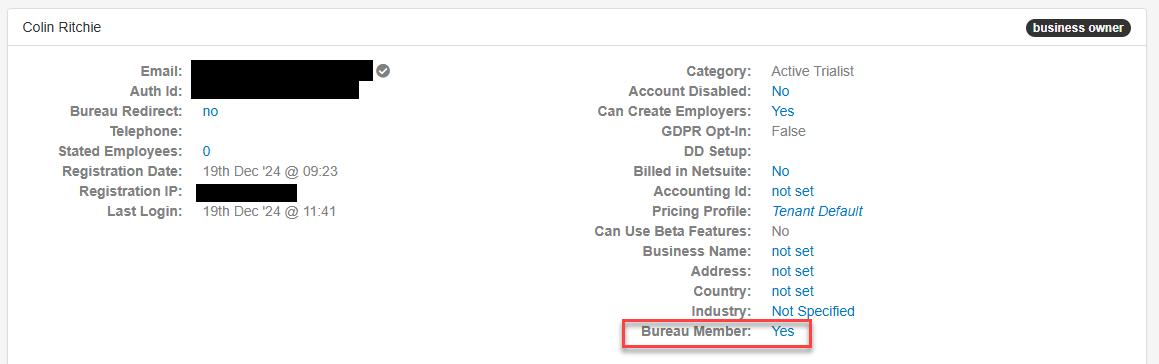
To be able to be added to a payroll squad, you must first be a bureau member. Go to Manage Users, and select the relevant user. On the user's screen, there is a new Bureau Member option, which needs switching to Yes.
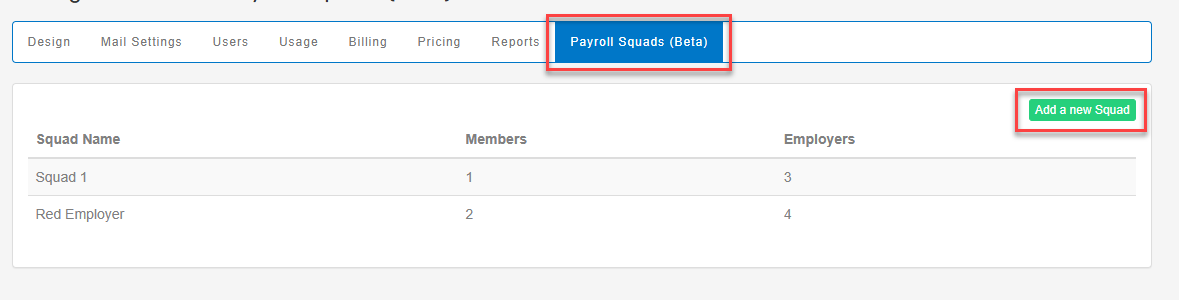
Once switched to yes and saved, go to manage users, and select the new Payroll Squads tab, then select Add a new Squad.
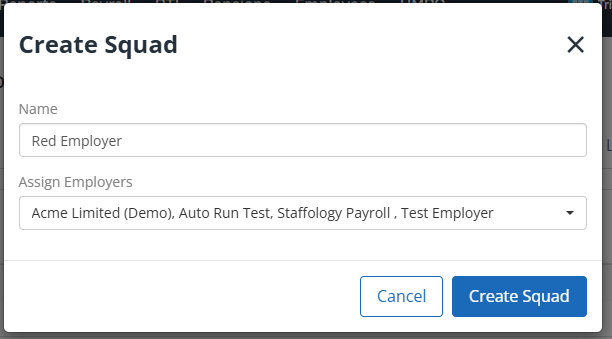
Enter the Name for the squad, then in Assign Employers, select the employers you want to add to this squad. Once selection is complete, select Create Squad.
Employers will only appear in the list if the tenant admin has access to them, and they are within the tenant.
Once back on the Payroll Squads tab, you can select an existing payroll squad and add bureau members to the squad.
Select the relevant payroll squad from the list, and go to Add new Member.
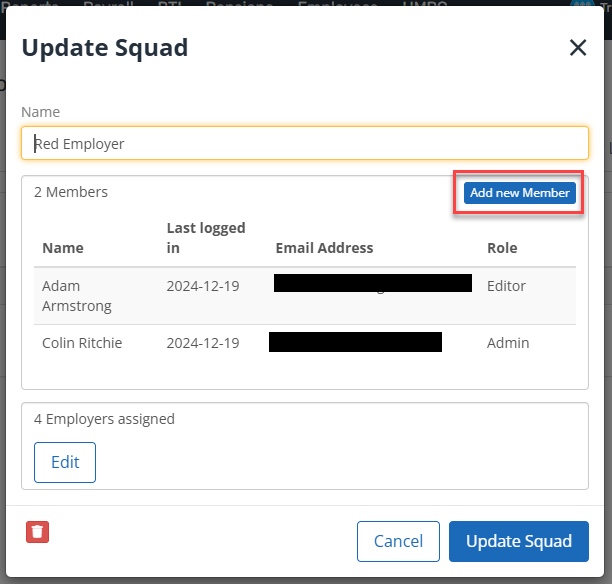
All users with bureau member set to yes can be selected from the Assign Member list. Once selected, they can be given a Role, and the changes saved.
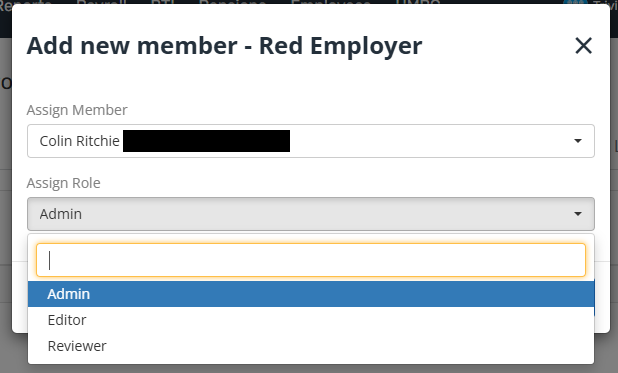
When adding a member to a payroll squad, the available roles are Supervisor, Admin, Operator, Editor, and Reviewer. For what each role can do, go to About roles.
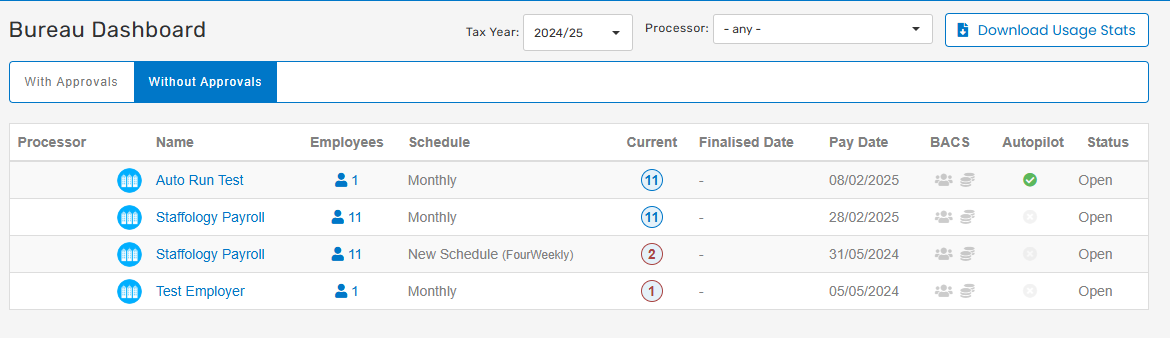
When a squad member next signs in, they can now access the new payrolls within the bureau dashboard, and also from the employer list as member of a payroll squad.