Update Disciplinary form list items
To add more items to the lists shown on the Disciplinary form:
-
Sign in to Staffology HR.
-
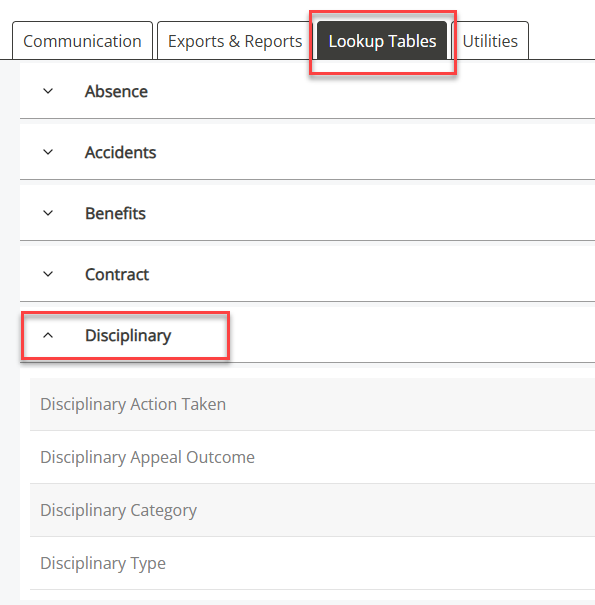
Go to System Tools > Lookup Tables > Disciplinary.
-
The names of the drop-down list shown on the Disciplinary form display
-
-
Select a list name.
-
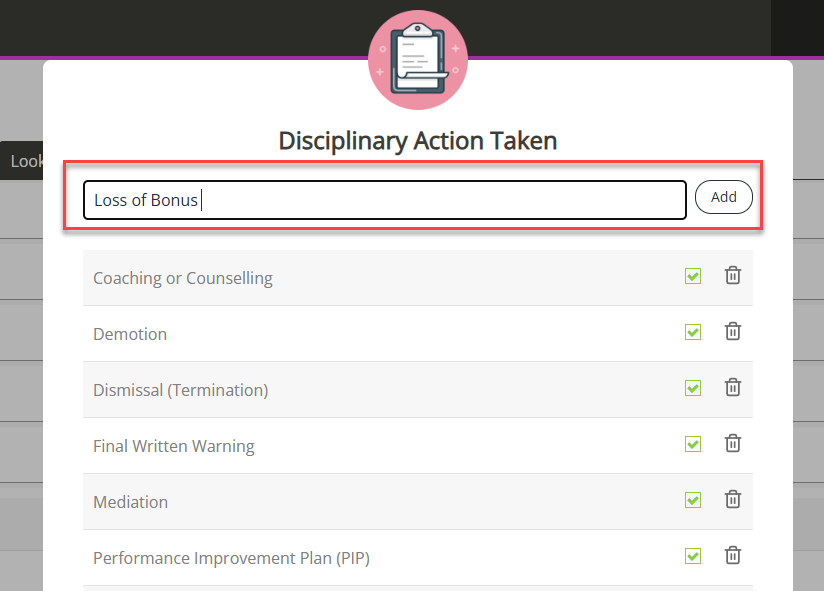
A screen displays showing the current list items.
-
Enter the name of the list item you want to add.
-
Select Add.
-
The list updates and the new item shows as active.
Activate or deactivate a list item
-
Select the tick checkbox to activate or deactivate an item.
Remove a list item
-
Select the bin icon to permanently remove an item from the list.
Last steps
-
After adding all new list item, select Close.
-
The Disciplinary form updates with the new list items you added.