Getting started as an existing customer with HR and Payroll (not integrated)
Before you integrate
In Staffology HR, you must complete the fields listed in this table in employees' records before you integrate HR with Payroll. If any of these fields are missing, the integration will fail.
If you have already imported this data, you can start the integration. If you are not sure, run a Quick Query first. Once you have confirmed all required fields are complete, you can start the integration.
Create a Quick Query
Ultimate, Professional, and Essential packages
You can run a Quick Query to check that all required fields are complete.
To do this:
-
Open the Quick Queries topic and follow the instructions to create a new query.
When creating your query, add the following:
-
From the Form list, choose Personal. This relates to My Details > Personal.
-
In the Search Results, select Forenames and Surname.

-
-
Using the Form list again, select Contract.
-
In Select Fields, choose Company
-
-
Repeat the same steps to include all fields in the query using this table as a guide.
If all fields required for the integration are complete, you can start the integration.
If any fields are missing, update them in employees' records. You must do this manually, except for the Company field, which you can update in bulk if you are on the Ultimate, Professional, or Essential package.
Refer to Bulk update the Company field for more information.
Foundation package
You cannot use Quick Query. You must check and update each employee record manually.
Bulk update the Company field
Ultimate, Professional, and Essential packages
How you update the Company field in employees' records depends on if all employees in the system work for the same company:
All employees work for the same company:
You can create a Lookup Replacement without filtering employees.
Add this criteria:
-
From the Field list, choose Contract - Company
-
Leave the From list blank
-
From the To list, select the company you want to assign
Employees work for different companies:
Use the Employee Selector first to filter the employees you want to update, then apply a Lookup Replacement.
To do this:
-
Open the Employee Selector and filter the employees you want to update.
For example, if all employees in the Manchester office work for the same company, filter by Location/Division and select Manchester.
-
With the Employee Selector active, create a Lookup Replacement.
Add this criteria:
-
From the Field list, choose Contract - Company
-
Leave the From list blank
-
From the To list, select the company you want to assign
-
Foundation package
Individual updates only.
-
You must update all fields in each employee's record individually before completing the integration.
You can now start the integration.
Set up the integration
Create an API Key in Staffology Payroll
-
Sign in to Staffology Payroll.
-
Go to the top right of the screen, select your initials, then choose API Keys.

-
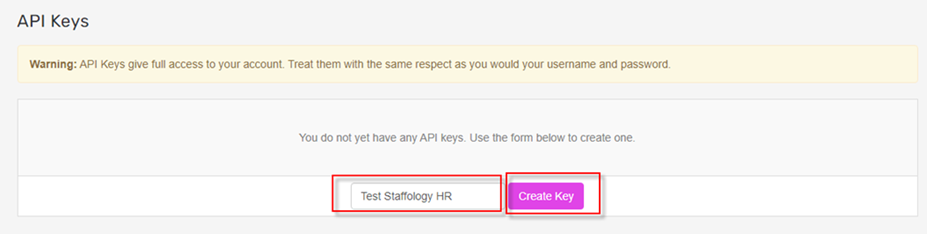
Enter a name and select Create Key. Copy the API key. You will use this in HR.
Activate Staffology Payroll in HR
-
In Staffology HR, go to System Tools > Utilities > System Configuration.
-
Within the Payroll Integration section, select Staffology Payroll.

-
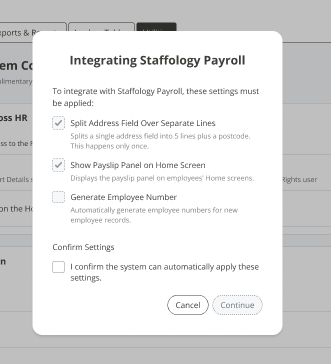
Review the information in the pop-up and select the confirmation box.
-
Select Continue.
-
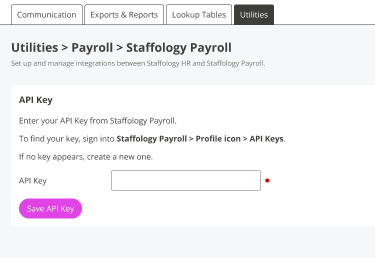
Enter your API Key from Staffology Payroll and select Save API Key.
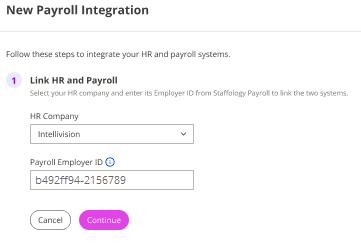
Link HR and Payroll
- Select your HR Company from the list.
-
Enter your Employer ID from Payroll.
-
To find the Employer ID, in Payroll select your company name from the top menu, then choose Edit Details

-
- Select Continue.
Choose whether to add Payroll employees to HR
-
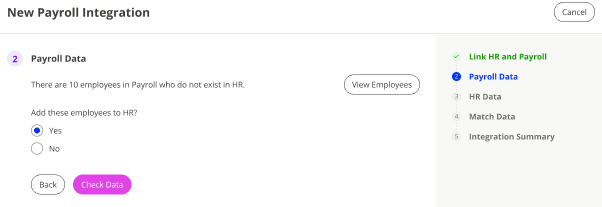
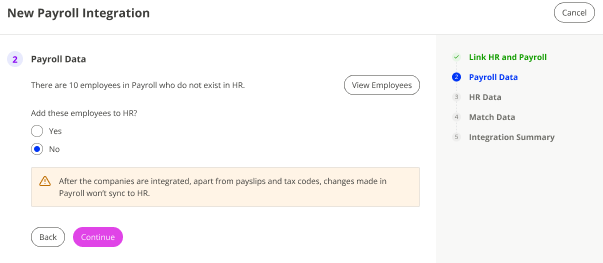
You are asked if you want to add employees that exist in Payroll but not yet in HR.
-
Select View Employees to open a list of employee names
If you want to add employees from Payroll
-
Select Yes.
-
Select Check Data.
The system checks Payroll employee data for any issues before importing new employees into HR.
-
Continue to Step 17.
If you do not want to add employees
-
Select No, then choose Continue.
-
Skip to Step 18.
-
Check Data
-
The system checks for data issues.
If errors are found
-
Download the report
-
Fix the issues in Staffology Payroll.
-
Return to HR and select Recheck Data
-
Repeat until no errors remain.
-
Select Continue and go to Step 18.
No errors
-
Select Continue. Go to Step 18.
-
Choose whether to add HR employees to Payroll
-
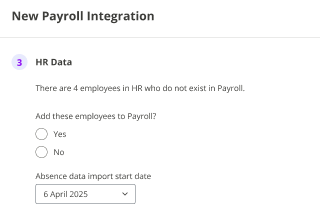
You are asked if you want to add employees that exist in HR but not yet in Payroll.
-
Select View Employees to open a list of employee names
If you want to add the employees
-
Select Yes.
-
Choose the tax year when HR absence When an employee or worker is absent from work. This can be for a variety of reasons. data should start syncing to Payroll.
-
Select Continue.
-
Continue to Step 19.
If you do not want to add employees
-
Select No, then choose Continue.
-
Skip to Step 18.
-
Match Data
This step applies only to employees who already exist in both HR and Payroll. If there are no data matches, skip to Step 20.
-
Choose which system to use if there are any differences with employees' data.
Once you complete the integration, HR becomes the source of truth for most employee data. To understand what this means for your data syncs, refer to How data syncs with Staffology Payroll
HR selected
-
Select Continue and go to Step 20.
Payroll selected
Select Continue. The system checks for employees with matching details in both systems.
If the same employee exists in both systems but has mismatched data:
-
Download the report
-
Fix the issues in Staffology Payroll.
-
Return to HR and select Recheck Data
-
Repeat until no errors remain.
-
Go to Step 20.
-
Integration Summary
-
A summary displays showing the number of employees added and matched across both systems. Select Integrate Companies to link your HR and Payroll companies.
Complete the integration
-
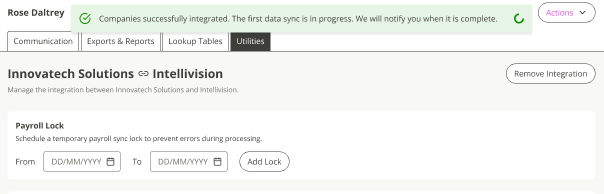
A success message confirms the integration is in progress. You will receive a notification when the first data sync is complete.
Learn how toCreate a new payment or deduction, with or without linking to Payroll