Update who approves absence requests
This topic explains how to change who approves absence When an employee or worker is absent from work. This can be for a variety of reasons. requests.
There are two ways to do this:
-
System admins can select a different approver for any employee
-
Line managers can pass absence requests to someone else when needed
For system admins
By default, the system sends absence requests to the employee’s line manager. To send requests to another approver, turn on the Approver (if different) feature, then set the approver in the employee's record.
Turn on the Approver (if different) feature
-
Sign in to Staffology HR.
-
Go to System Tools, then select Utilities.
-
Select Tools.
-
Select System Configuration.
-
In the Absence section, select Approver (if different).

-
Select Save.
Now set a new approver for an employee's absence requests.
Update the approver in an employee's record
-
Go to Directories.
-
In the Employees tab or any other tab, search for the employee and select their record.
-
Select Edit.
Or select the Edit icon on the employee's name:

-
Select Contract.
-
In the Approver (if different) field, start typing the name of the approver, then select them from the list.
-
Select Save.
Next time the employee submits an absence request, such as holiday, the request goes to the new approver.
For line managers
If you are away from work, for example on holiday or off sick, you can send your team’s absence requests to someone else to approve.
Reroute absence requests
-
Sign in to Staffology HR.
-
Go to My Details.
-
Select Personal.
-
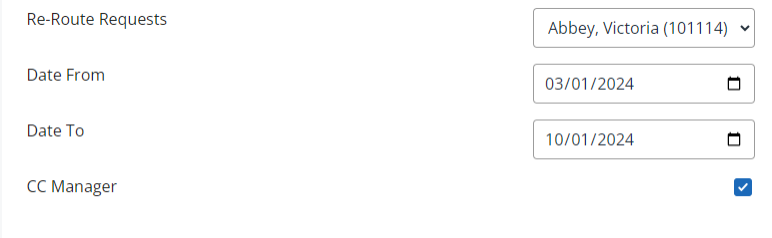
Find Re-Route Requests. Start typing the name of the person who will approve absence requests, then select them from the list.
-
Add a Date From and Date To to make them a temporary approver. Leave both blank to make the change permanent.
-
Select CC Manager to get copies of the requests.
-
Select Save.
Absence requests from your team now go to the person you selected.