Using the Data Import
The Data Import tool is ideal for making regular salary adjustments, such as annual increases, promotions, or compensation changes.
The steps in this section are based on importing salary changes.
-
Sign in to Staffology HR.
-
Go to System Tools > Utilities > Data > Import.
-
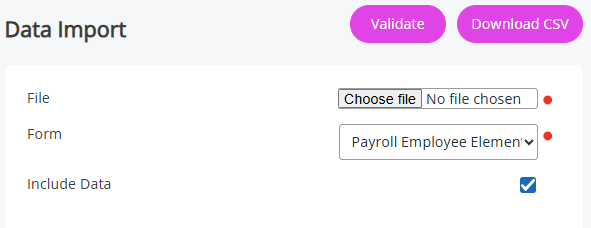
From the Form list, select an option, such as Payroll Employee Element.
-
Select the Include Data checkbox to pre-fill the template with current month data.
-
Select the Actions list > Employee Selector and choose specific employees (optional).
-
Select Download CSV to get your editable file.
-
Open the CSV and update the salary or pay element details as needed.
-
If you are updating an existing value, make sure to keep the Record ID as this ensures each pay element is updated according to the data in the import file, with all appropriate validation and security as per existing the import
-
When an open-ended salary is included in the file, Staffology HR ends the previous one and starts a new one. The end date is the day before the start date of the new record
-
-
Re-import the updated file using the same screen.