Resubmit a declined expense
To resubmit a declined expense with or without making changes:
-
Open the Staffology HR mobile app.
-
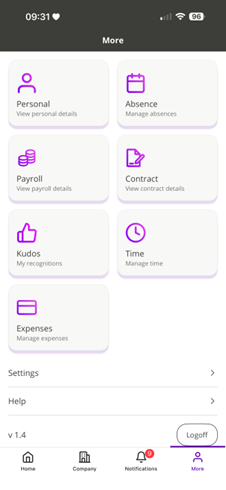
On your Home screen, in the bottom navigation bar, tap More.
-
Select Expenses.
-
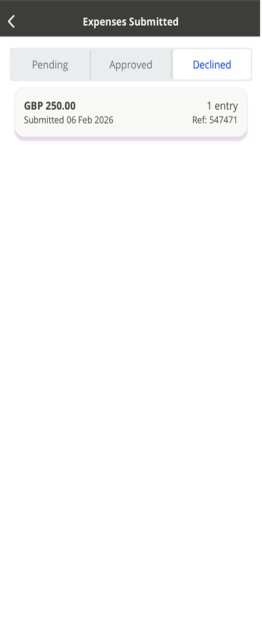
Tap Expenses Submitted > Declined.
-
Tap on the expense you want to resubmit.
-
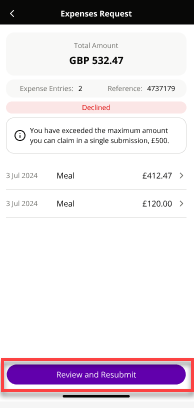
Review the expense details, then tap Review and Resubmit.
-
When the pop-up message appears, tap Move to move the expense back to Ready to submit.
-
Do one of the following:
-
Tap the expense to make changes, then resubmit it, or
-
Select the checkbox on the expense tile and tap the Send icon in the bottom-right corner
-